
Shopify integration: see and manage orders in conversations
On this page
Connect Shopify and your team sees the customer's orders right next to the conversation. In the dashboard, the Orders section of the Details tab lists each order with its status, total, items, tracking and shipping address, and people with the right permission can refund all or part of an order, cancel it or mark it shipped there. In the iPhone and Android app, they can refund orders too. You connect each shop once through its own small Shopify app.
Before you start
- Connecting a shop needs an administrator or, on Enterprise, a member whose custom role has Manage integrations.
- Your first Shopify shop is included on every plan, the free Hacker plan too. More shops come with the Enterprise plan: each further shop is $12 a month, or $9.60 a month billed yearly.
- You need the Shopify account that owns the shop, for the Shopify admin, dev.shopify.com and Shopify Partners.
How the connection works
You create your own small app in Shopify's Dev Dashboard and give Deskwoot its Client ID and Secret. Deskwoot then asks your shop for permission, and after you approve, Shopify gives Deskwoot an access token for your shop. Every merchant runs their own app with their own credentials, limited to their own shop. If you connect several shops, each one gets its own app.
Step 1. Open Shopify Dev Dashboard
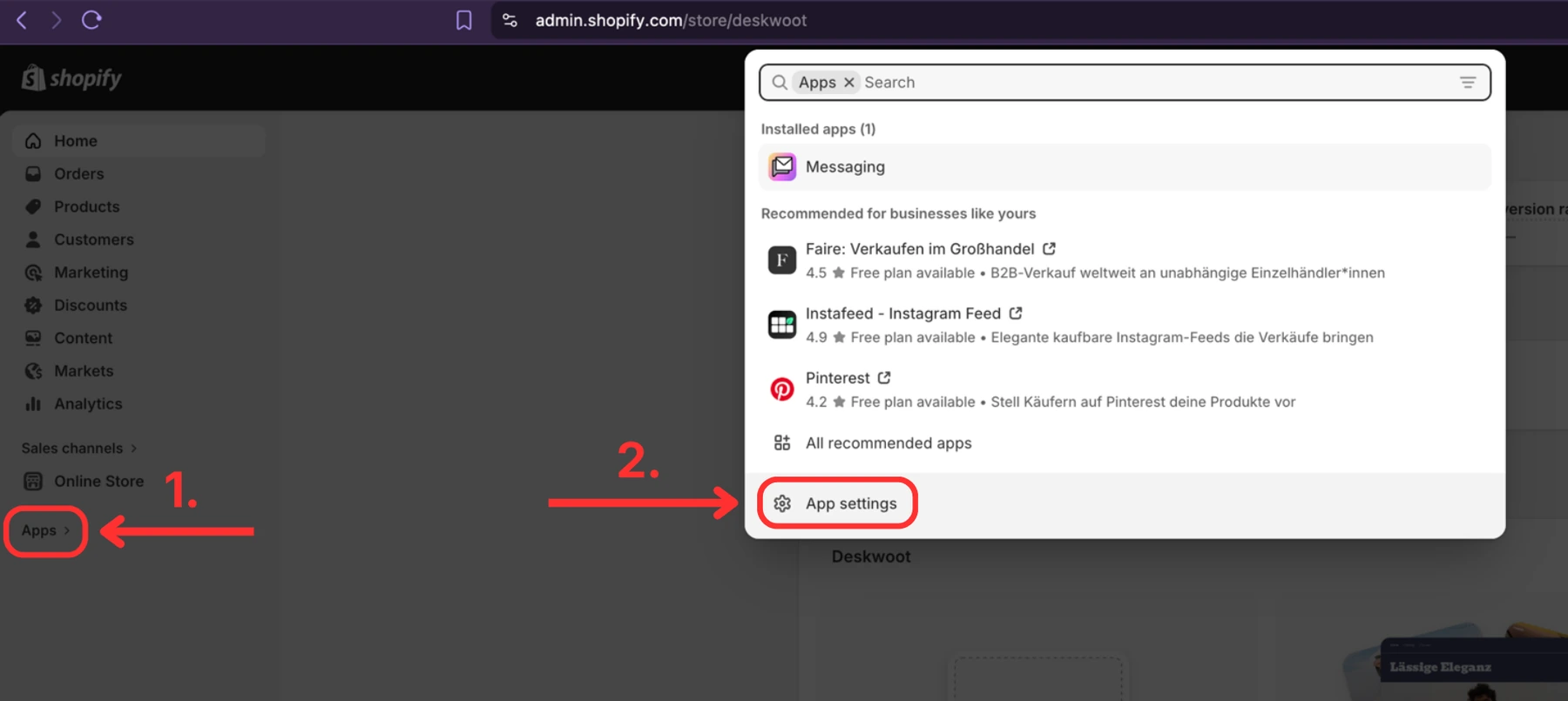
Go to https://dev.shopify.com and log in with the same Shopify account you use for your shop. In the left sidebar click Apps (1.), then click App settings in the popup that appears (2.).
Step 2. Copy your shop URL and click Develop apps
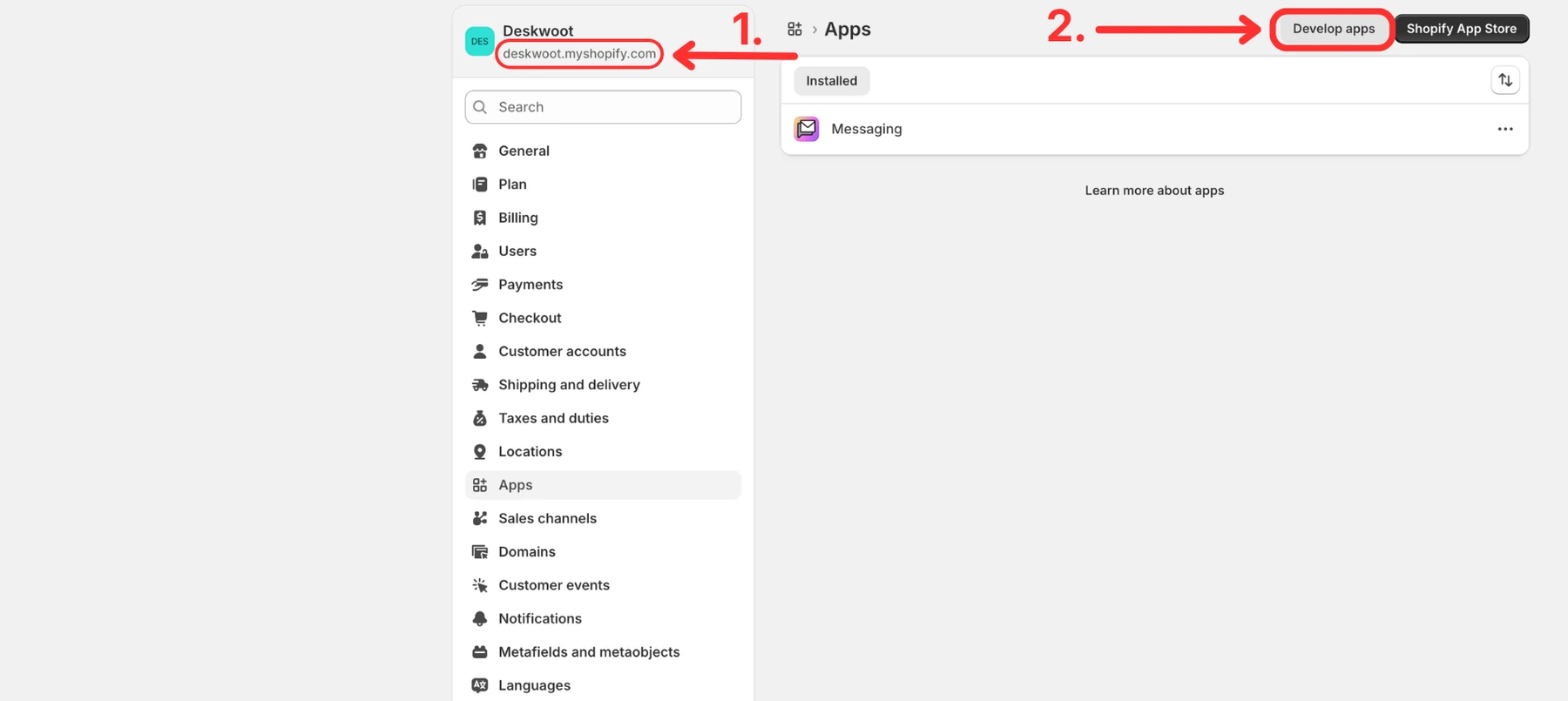
This is the Apps page of the Shopify admin. You can also reach it from admin.shopify.com, then Settings, then Apps. At the top left you see your shop URL, something like your-store.myshopify.com. Copy it, you will paste it into Deskwoot at the end. Then click Develop apps in the top right.
Step 3. Build apps in Dev Dashboard
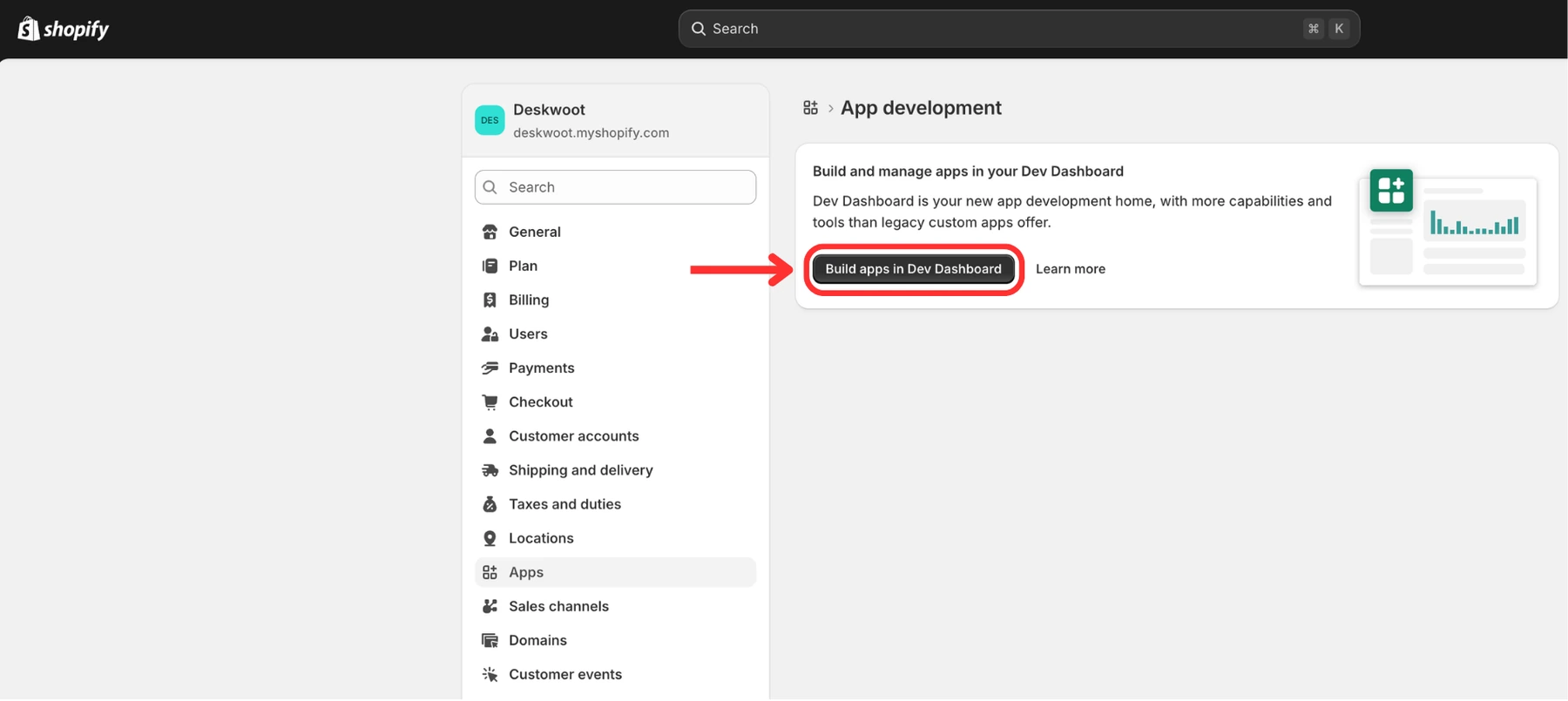
Click Build apps in Dev Dashboard. This opens the app builder where you create your app.
Step 4. Create app
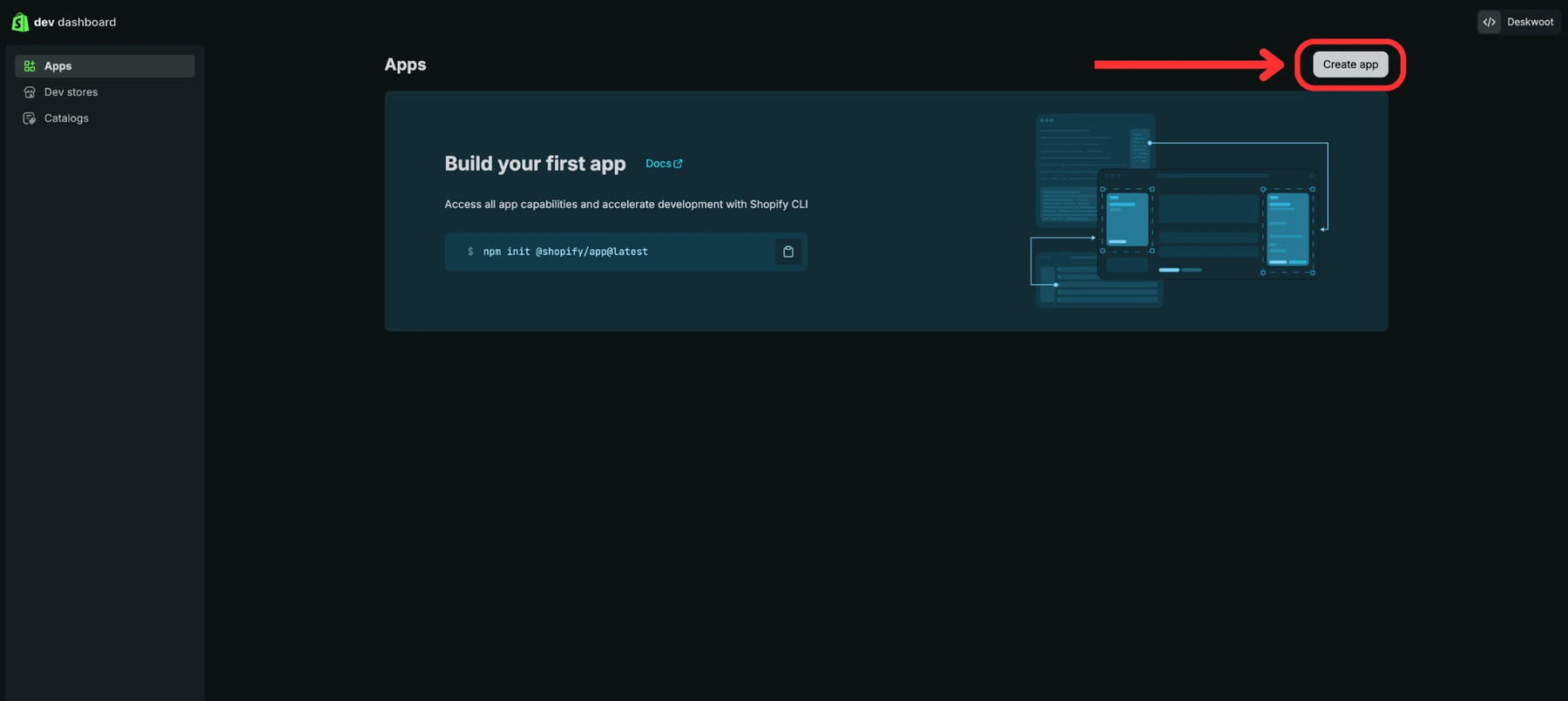
Click the Create app button in the top right.
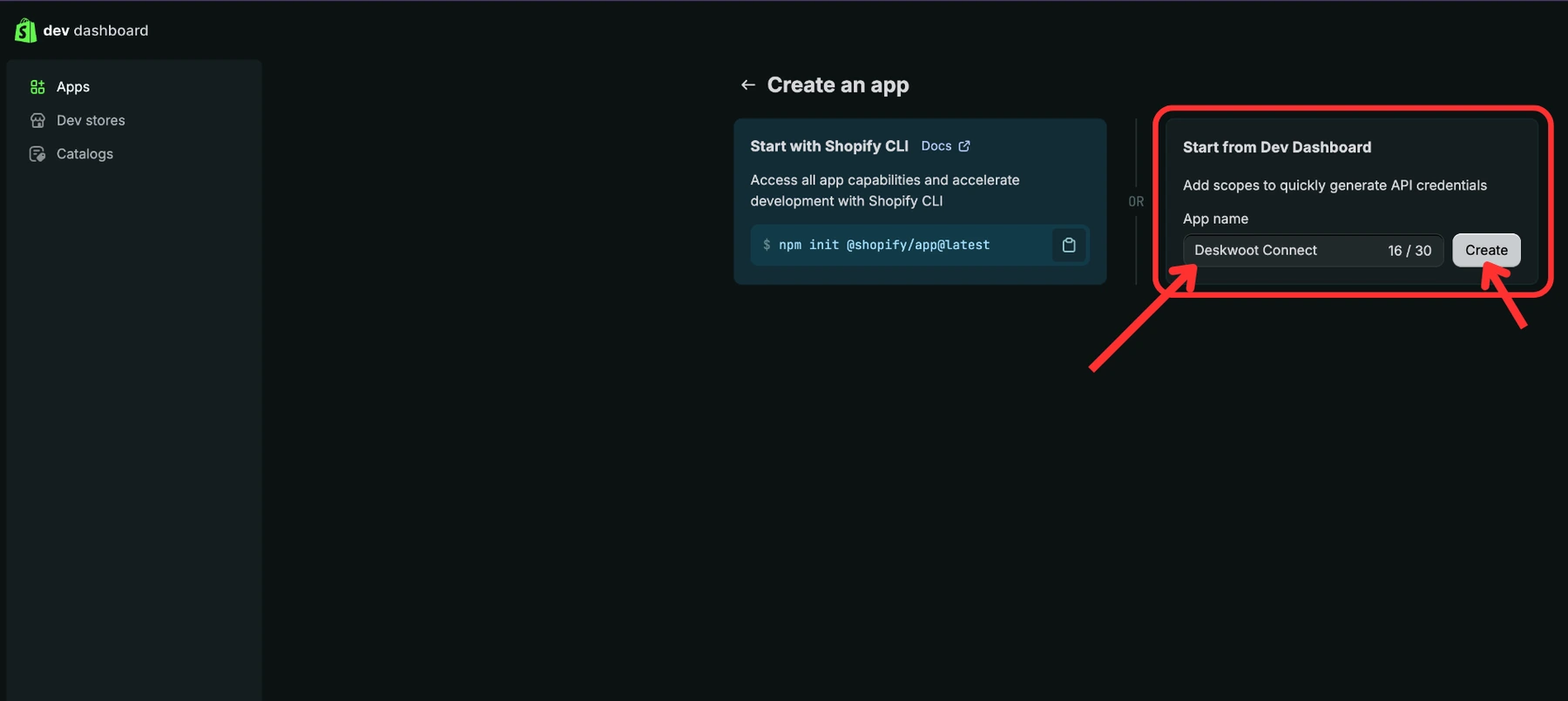
Step 5. Pick a name and create the app
Choose Start from Dev Dashboard; you do not need the CLI option. Type any name in the field on the right (1.), for example Deskwoot Connect. Then click Create (2.).
Step 6. Set the App URL, embedding and scopes
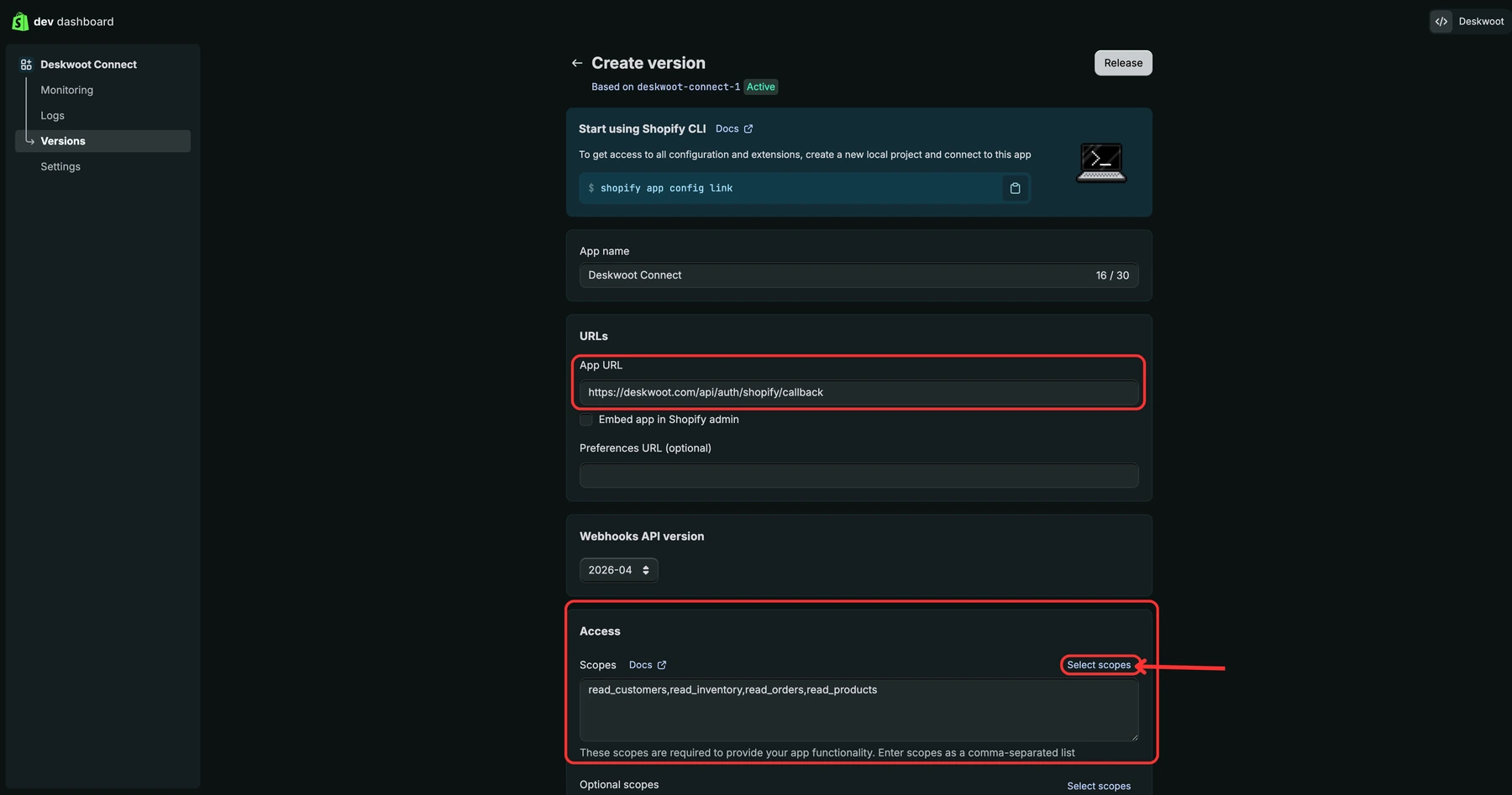
Shopify opens the Versions page. Set three things there:
- (1.) App URL: paste
https://deskwoot.com/api/auth/shopify/callback - (2.) Embed app in Shopify admin: untick this box. Deskwoot does not run inside the Shopify admin.
- (3.) Scopes: click Select scopes in the Access section on the right and select the scopes Deskwoot asks for when you connect:
read_customersread_ordersandwrite_ordersread_productsread_inventoryread_fulfillmentsread_merchant_managed_fulfillment_ordersandwrite_merchant_managed_fulfillment_ordersread_returnsandwrite_returns
read_all_orders. Shopify may ask you to request access to it first; if the release fails with it, leave it out. The screenshot below shows an older setup with fewer scopes.
Step 7. Add the Redirect URL and click Release
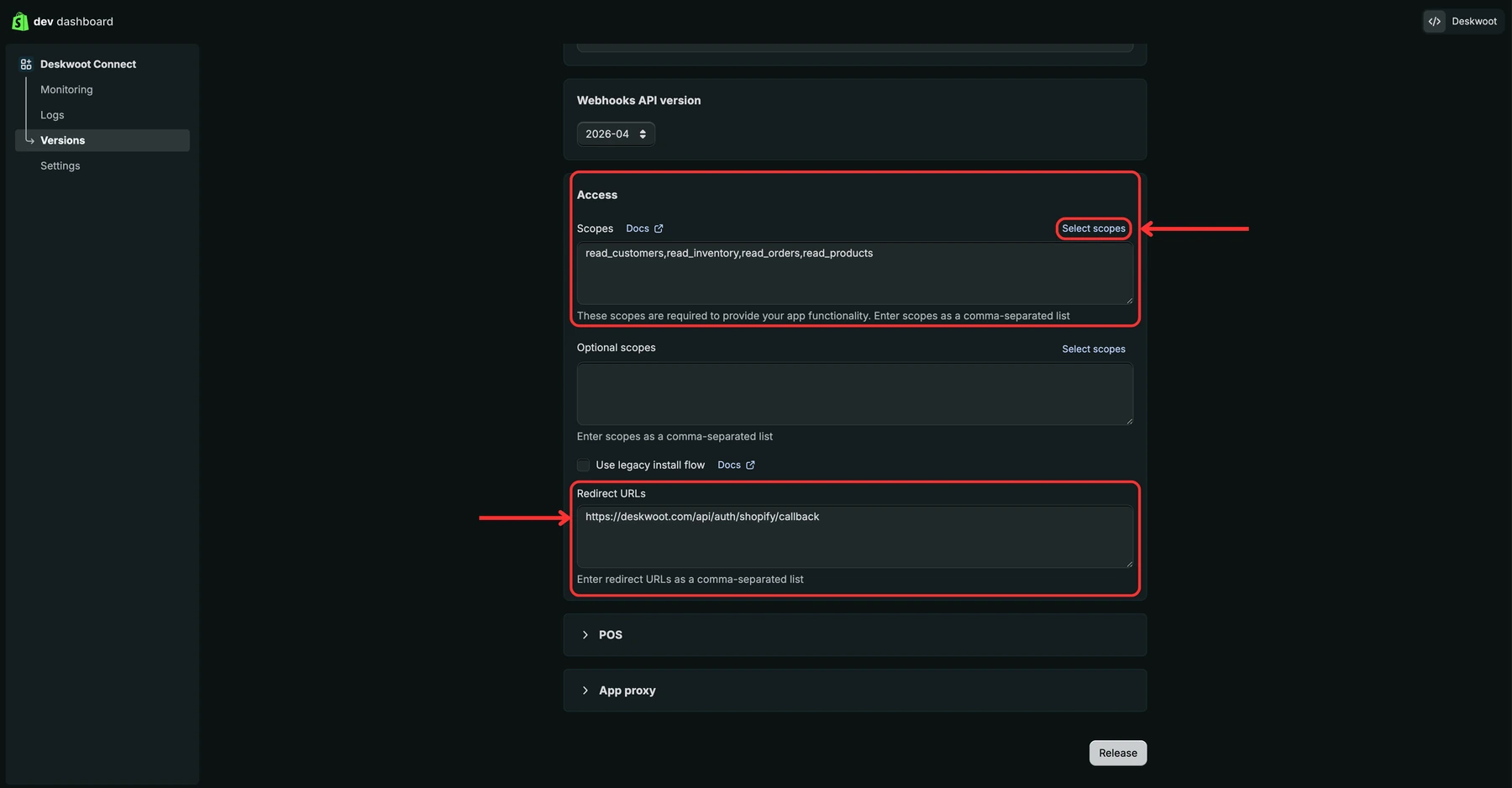
Stay on the same page and scroll down. Set:
- (4.) Redirect URLs: paste
https://deskwoot.com/api/auth/shopify/callback, the same URL as in the App URL field.
Leave Optional scopes, Use legacy install flow, POS and App proxy as they are. Then click Release (5.) at the bottom right.
Step 8. Confirm the release
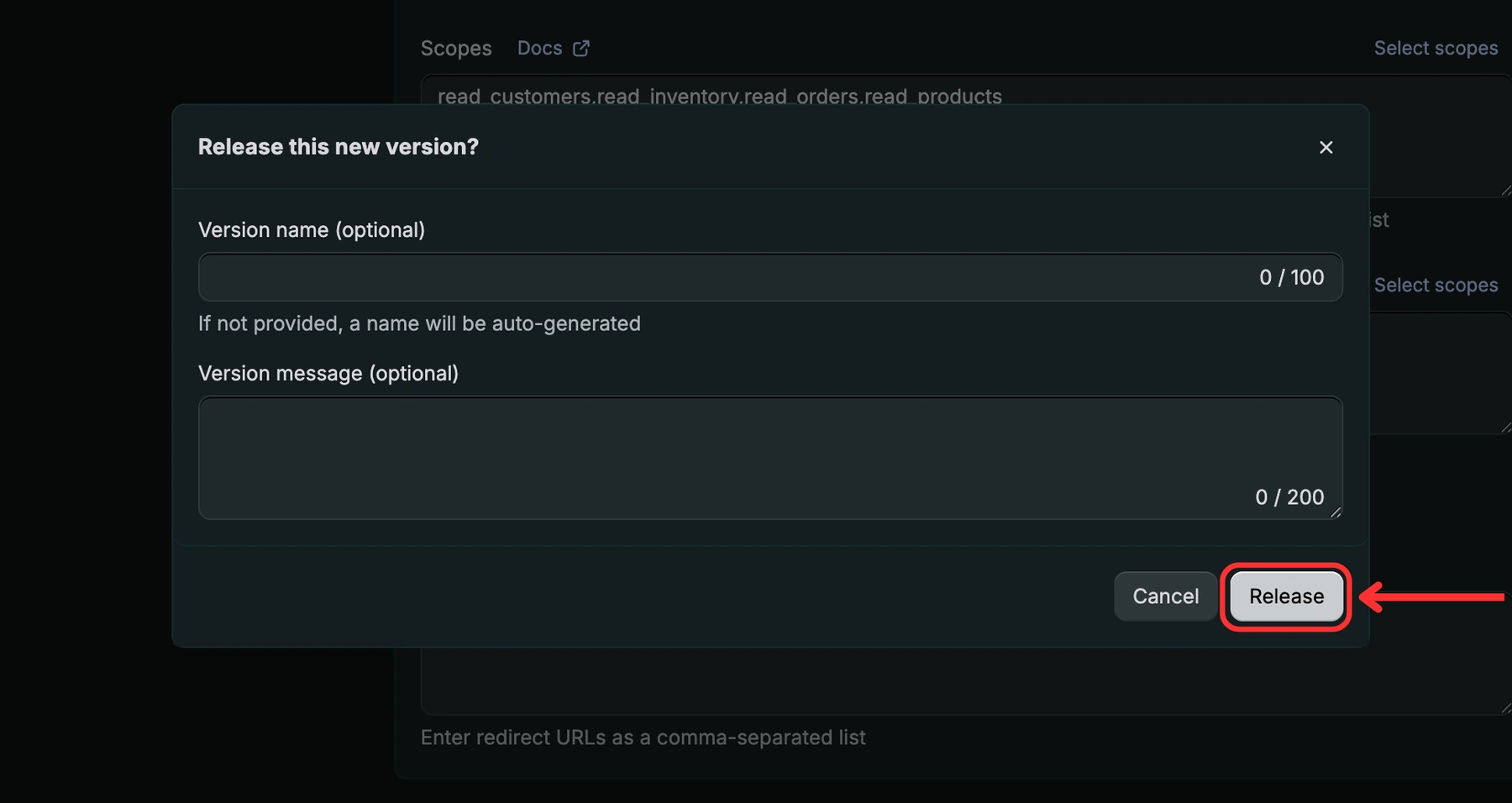
A dialog opens. Click Release again to publish the version.
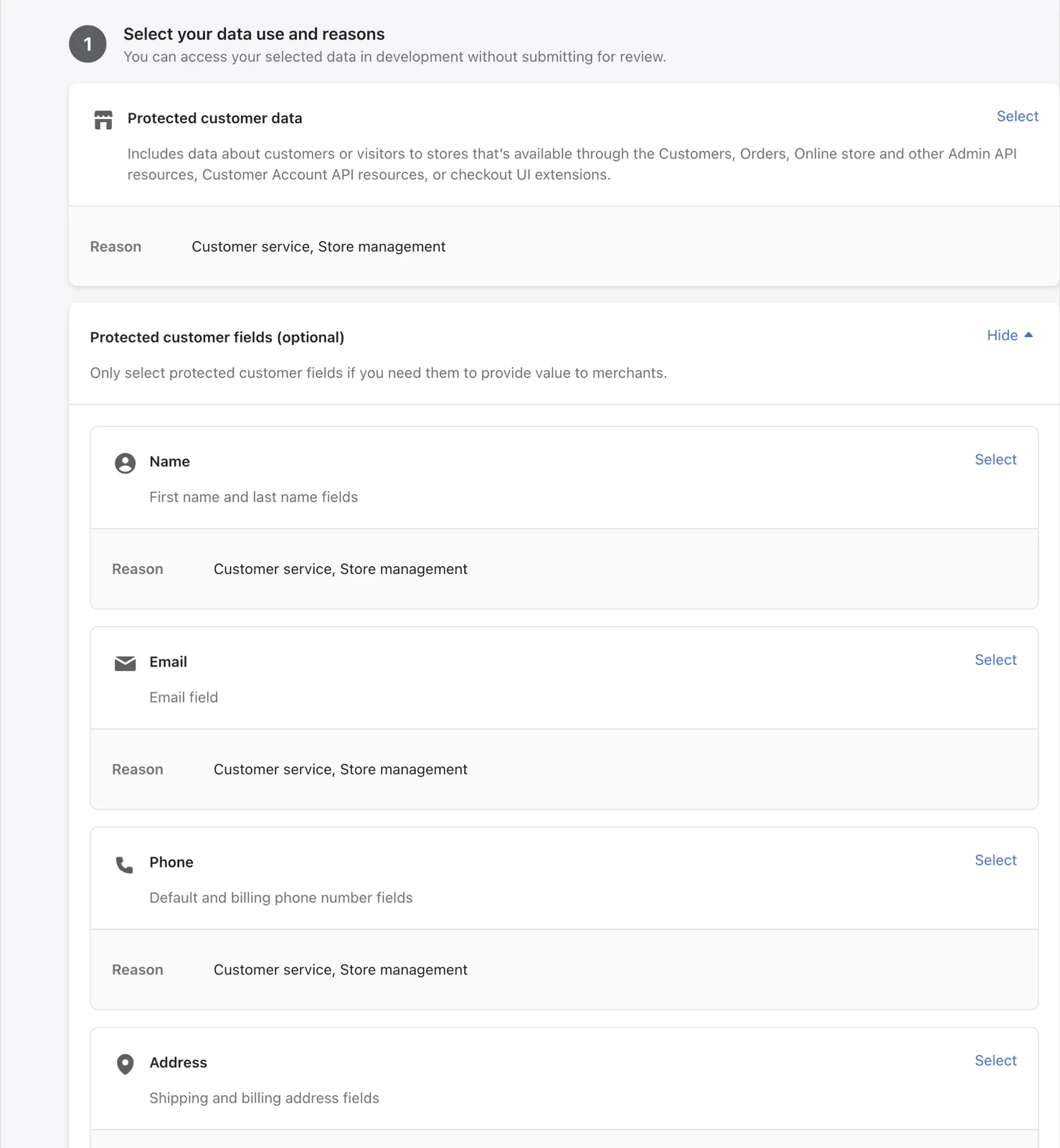
Step 9. Allow customer data
Without this step Shopify does not share orders and customers with your app, and Deskwoot cannot import them.
- In the Dev Dashboard, open your app's Overview and click Select distribution method. This takes you to Shopify Partners.
- Click API access requests, then Protected customer data access.
- Next to Protected customer data, click Select, tick Customer service and Store management, and click Save.
- Do the same for Name, Email, Phone and Address.
You do not need step 2 on that page or a distribution method. An app like this one, which is not listed in the Shopify App Store, needs no review by Shopify.
Step 10. Copy the Client ID and the Secret
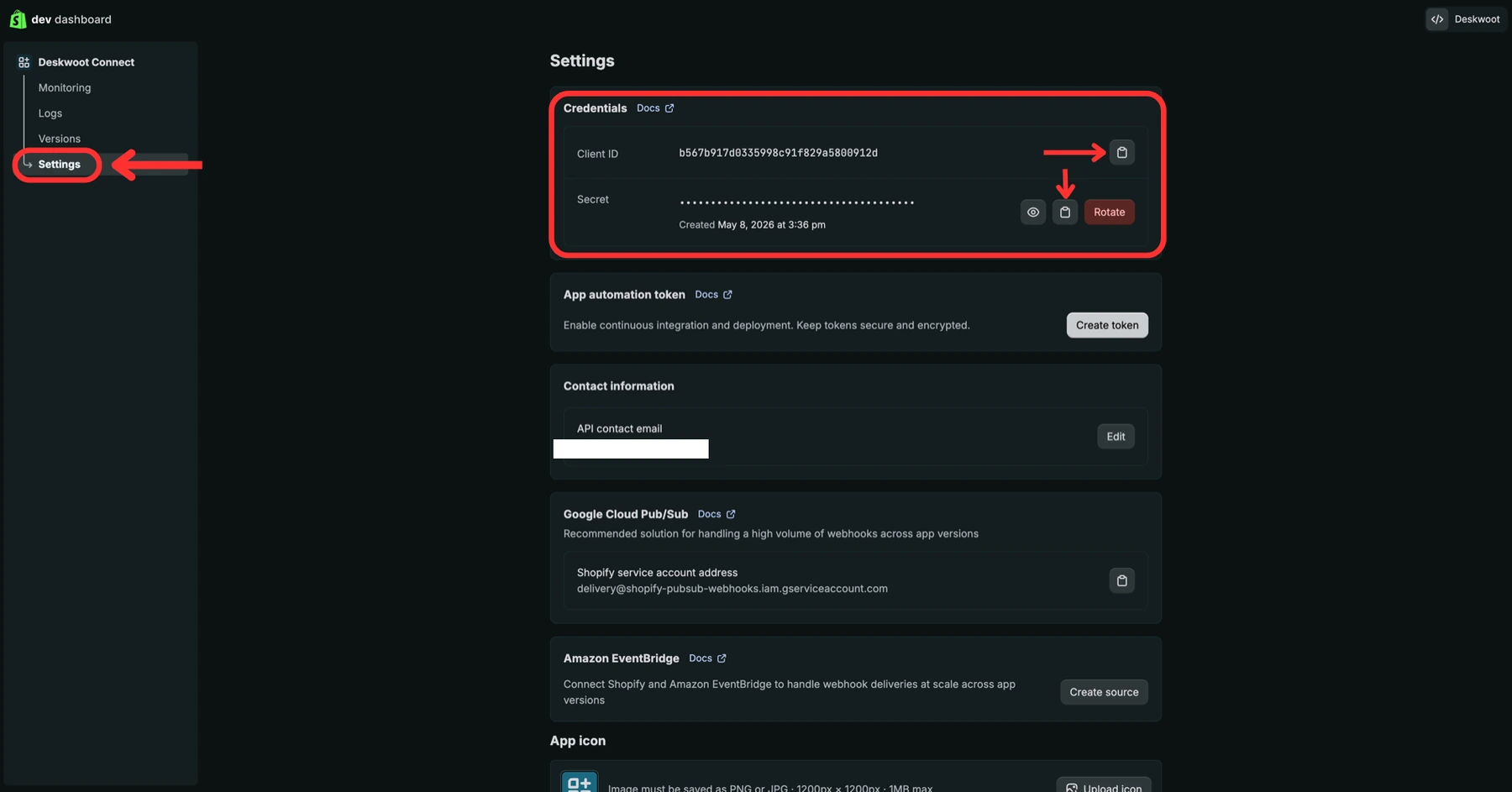
Back in the Dev Dashboard, click Settings in the left sidebar of your app. The Credentials section at the top shows two values:
- Client ID: click the copy icon next to it.
- Secret: hidden at first. Click the eye icon to show it, or click the copy icon next to it.
Step 11. Connect in Deskwoot
- In Deskwoot, open Settings > Integrations and click Connect on the Shopify card.
- Fill in Shop domain with the URL from step 2, for example
your-store.myshopify.com, withouthttps://. - Fill in Client ID and Client secret with the Client ID and the Secret from step 10.
- Click Connect with Shopify. Shopify opens your shop and asks you to approve the access. Click Install app.
Shopify sends you back to Deskwoot. In the background, Deskwoot then imports your Shopify customers as contacts and after that your orders. New orders and changes arrive through Shopify webhooks.
Connecting during the guided setup? Its Store step shows the app setup with the values to copy. Allow customer data as in step 9 of this article there too, because the setup does not list that step.
Connect more than one shop
Your first shop is included on every plan. On the Enterprise plan you can add more: each further shop is $12 a month, or $9.60 a month billed yearly, on the same billing interval as your plan.
- Open Settings > Integrations and click Manage on the Shopify card.
- Click Connect another Shopify shop. When every booked shop is already connected, Add a Shopify shop opens first, where an administrator books and pays for the extra shop.
- Set up the new shop's own app with steps 1 to 11.
Every shop has its own row under Connected shops, with its status and Disconnect. When a customer has orders in several shops, each order shows the name of its shop. You change the number of extra shops under Settings > Billing.
If your plan drops below Enterprise, the extra shops are paused and the add-on ends with its period. A paused shop keeps its orders, but Deskwoot does not read it or act on it.
What your team sees
Open a conversation and look at the Orders section in the Details tab of the right panel. Deskwoot finds the customer's Shopify orders by the contact's email address. Each order shows its number, payment status, date, total and fulfillment status. Click an order to see the items, tracking with Track shipment and the shipping address.
In the opened order, people with the right permission see these buttons:
- Refund opens a window where you refund all or part of the order. Pick the items and how many of each, choose Put back in stock for each item, refund the shipping, or type an amount. Shopify computes the amount for what you pick, and you can refund less. Email the customer about the refund is on by default. An order that is partly refunded can be refunded again until nothing is left.
- Cancel order cancels an order that has not shipped yet and stops fulfillment. Shopify also refunds the order in full, puts the items back in stock and emails the customer.
- Mark shipped asks for the carrier and the tracking number and marks an order that has not shipped yet as shipped.
Each of these actions leaves a private note in the conversation that only your team sees. Administrators can do all three. On Enterprise, a custom role can give other members Issue refunds (Shopify, Stripe, WooCommerce), Cancel orders and subscriptions and Fulfill orders. The standard Agent role sees the orders but not the buttons.
In the iPhone and Android app
Open a conversation and go to the Details tab. Under Orders you see the customer's orders. With the permission Issue refunds (Shopify, Stripe, WooCommerce), Refund opens the same refund window as on the web: refund all or part of the order by items and quantities, with Put back in stock, the shipping or an amount. For a Shopify order, Email the customer about the refund is on by default. Cancel order and Mark shipped are in the web dashboard only.
Fynn and Shopify
Fynn can read the same orders to answer questions like "Where is my order?". Switch on Orders & transactions (via Shopify/Stripe/WooCommerce) under Data Access in the bot settings (Settings > Bots). When a visitor who is not verified asks where an order is, Fynn first asks for the order number and the shipping postal code. This also works for an order Deskwoot has not stored yet, for example one placed before you connected the shop: Fynn then looks the number up live in your shop. Without read_all_orders in your app, Shopify lets Deskwoot read only the orders of the last 60 days, so an older order is found only when Deskwoot already has it. When number and postal code do not match, Fynn asks the customer to check both, and then offers to verify them by email instead. Copilot also sees the customer's Shopify orders when it helps your team. Fynn is part of the Startup, Business and Enterprise plans.
When you connect the shop in the guided setup, its Store step also asks what Fynn may do with orders: look up the order status and share tracking links. Refunds and cancellations stay off until you allow them in the bot settings (Settings > Bots).
Troubleshooting
- "Shopify does not share this shop's orders with your app yet": the app is missing step 9. Allow customer data, then click Reconnect on the shop's row so Deskwoot imports the orders.
- "Your Shopify app lacks access Deskwoot needs": the app's version misses scopes from step 6. Add the scopes the message lists under Access, release the version, then click Reconnect.
- "Shopify rejected the install signature": the Client secret does not match the Client ID. Copy both again from dev.shopify.com, your app, Settings, Credentials, and try again.
- "The install link took too long": install links expire 15 minutes after you click Connect with Shopify. Click it again to start over.
- "Shopify refused to exchange the install code for an access token": usually the Client secret is wrong, or the Redirect URLs of your app do not include
https://deskwoot.com/api/auth/shopify/callback. Check both and try again. - "The shop Shopify sent back does not match the shop domain you entered": you approved the install on another shop than the one you typed. The message shows both. Enter the domain of the shop you installed on and connect again.
- "Your plan includes one Shopify shop": a second shop needs the Enterprise plan and a booked extra shop.
- The app shows in your Shopify admin, but Deskwoot is not connected: the way back to Deskwoot was interrupted, for example by a closed tab. Click Connect with Shopify again.
- No orders in a conversation: the contact's email has to match the customer's email in Shopify. A contact without an email shows that no orders can be looked up.
Frequently asked questions
Can I connect more than one Shopify shop?
Yes, on the Enterprise plan. Your first shop is included on every plan, and each further shop is $12 a month, or $9.60 a month billed yearly. Click Manage on the Shopify card, then Connect another Shopify shop.
What does Deskwoot do with the Secret?
Deskwoot uses it to finish the install with Shopify. It also keeps it, encrypted, because Shopify signs its webhooks with the same secret and Deskwoot checks that signature on every webhook. The access token Shopify returns is stored encrypted too.
Can I disconnect a shop later?
Yes. An administrator opens Settings > Integrations, clicks Manage on the Shopify card and then Disconnect on the shop's row. Deskwoot removes its webhooks from that shop and revokes the access token, which also uninstalls the app from the shop. Then it deletes the connection and the orders it stored for that shop.
Can I refund a Shopify order in the iPhone and Android app?
Yes, in full or in part, with the same permission as on the web. Cancel order and Mark shipped work in the web dashboard only.
Can my agents refund only part of an order?
Yes. Refund lets you pick single items and their quantities, refund the shipping or type an amount. Shopify computes the amount for the items you pick, and you can refund less.
Why can my agents see orders but not the Refund button?
The buttons need permissions that the standard Agent role does not have. On Enterprise, an administrator can give them through a custom role with Issue refunds (Shopify, Stripe, WooCommerce), Cancel orders and subscriptions or Fulfill orders.
Does the connection cost extra?
Your first shop costs nothing extra. On Enterprise, each further shop is $12 a month, or $9.60 a month billed yearly.
Was this guide helpful?
Keep reading
- Zapier integrationConnect Deskwoot to thousands of apps with Zapier: the Deskwoot app for Zapier on Enterprise, or Webhooks by Zapier on every plan.Read guide
- EasyPost shipping trackingRead guide
- Send Facebook and Instagram leads to a WhatsApp inboxPipe Facebook and Instagram Lead Ads form fills into a WhatsApp inbox in Deskwoot.Read guide

Ask Fynn about this guide
Get a short answer from this guide and the rest of the help center.