
Set up a Stripe webhook so customer events arrive in real time
On this page
Without a webhook, the Details tab of a conversation still reads payments and subscriptions live from Stripe whenever the conversation opens, and Stripe customers are imported as contacts once a day. Nothing is saved in Deskwoot between those reads, and a brand new Stripe customer only becomes a contact with the next daily import.
Adding a webhook closes that gap. Stripe pushes events to Deskwoot the moment they happen on your account, and Deskwoot saves each charge, refund and subscription change right away. This guide walks you through every click with screenshots from the actual Stripe Dashboard.
Step 1: Copy your Webhook URL from Deskwoot
Open Settings → Integrations → Stripe in Deskwoot. The box Customer events in real time shows your personal Webhook URL under Step 1. Webhook URL. It looks like https://deskwoot.com/api/webhooks/stripe-customer/<your-integration-id>. Click Copy next to it.
Step 2: Open the Stripe Webhooks page
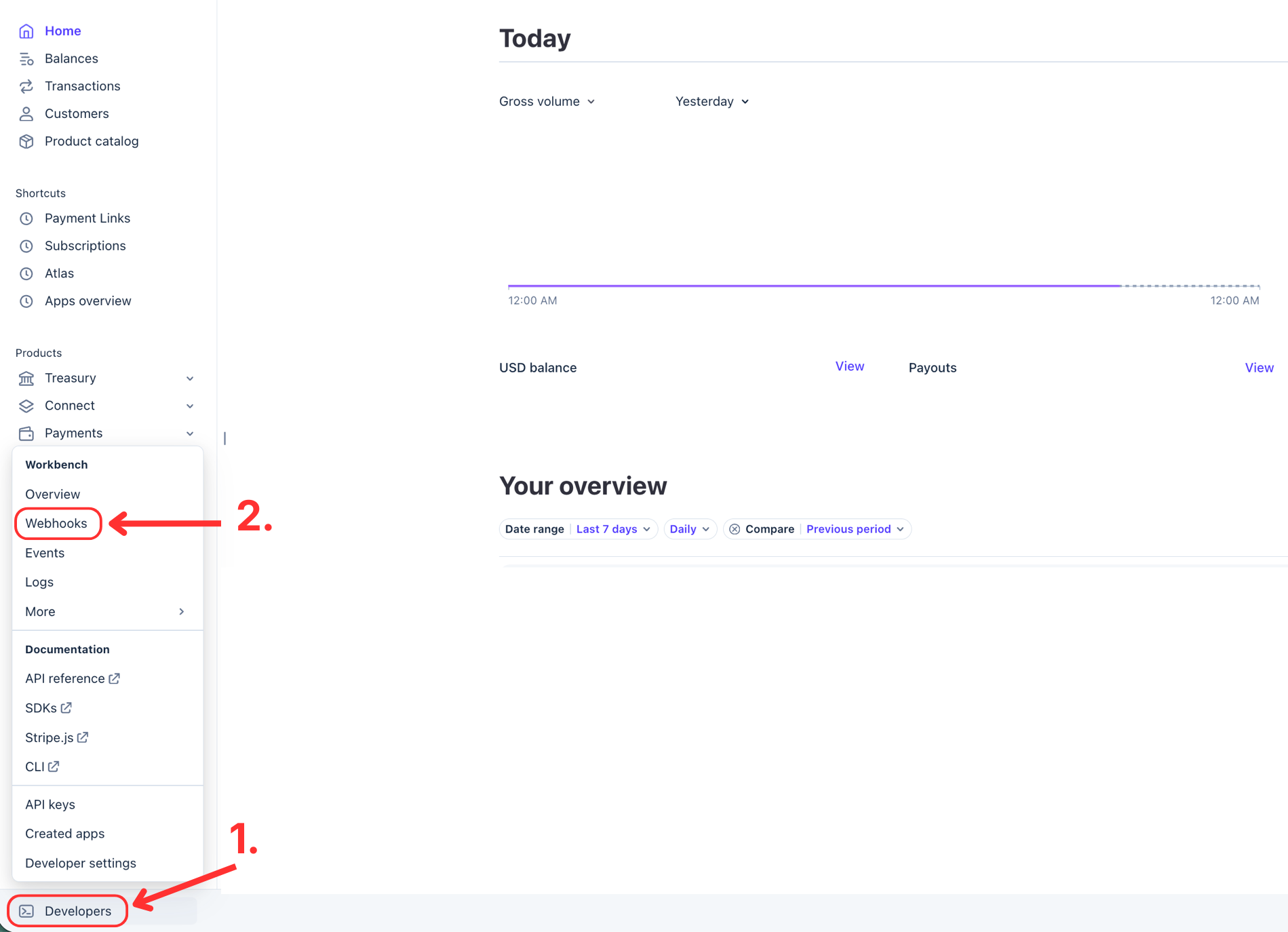
Log in to dashboard.stripe.com. In the bottom-left corner click Developers, then click Webhooks in the popup.
Step 3: Add a destination and select the 8 events
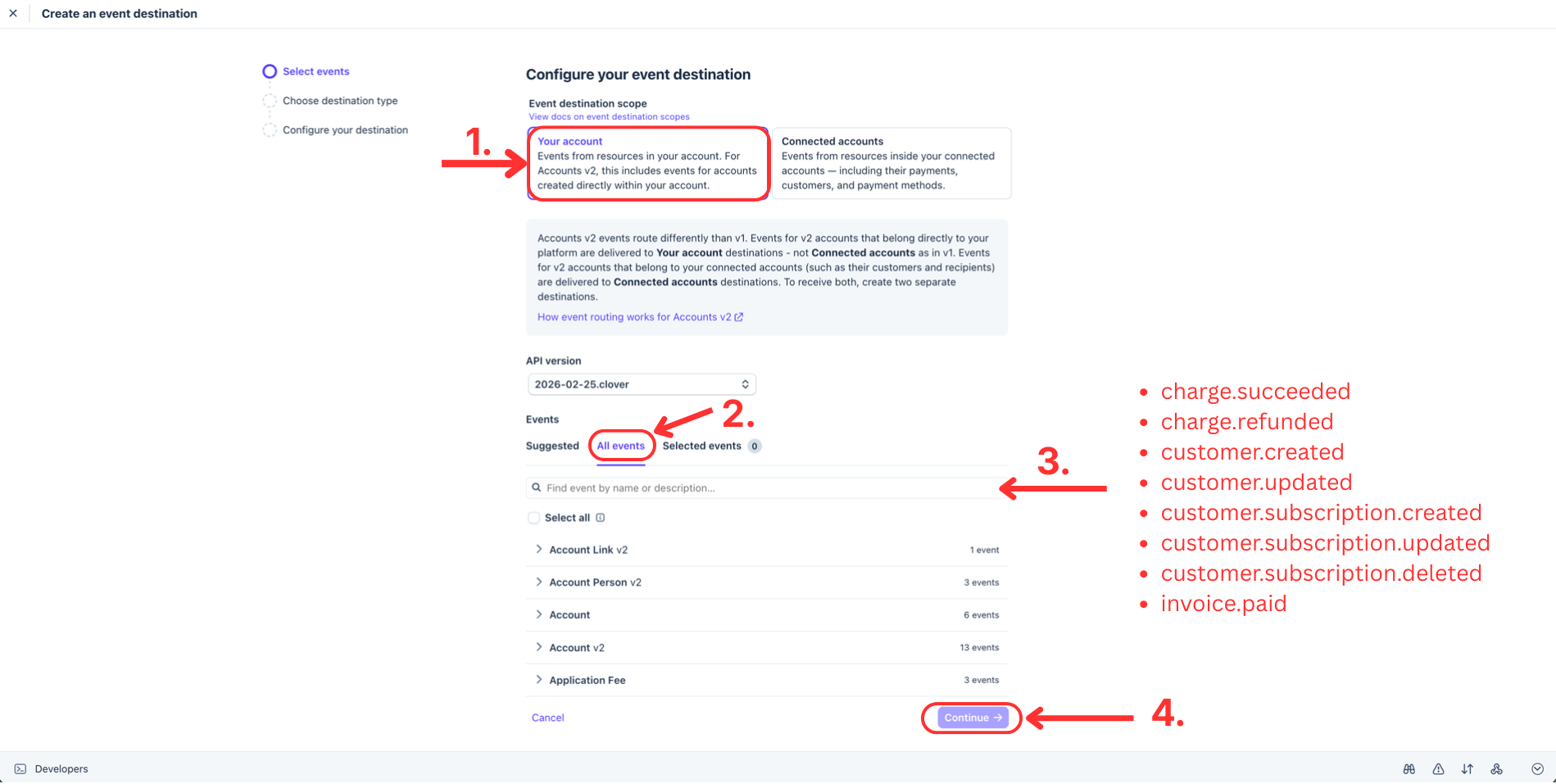
On the Webhooks page click Add destination. In the wizard:
- Leave Event destination scope on Your account.
- Switch to the All events tab.
- In the search field find and check each of these 8 events:
charge.succeededcharge.refundedcustomer.createdcustomer.updatedcustomer.subscription.createdcustomer.subscription.updatedcustomer.subscription.deletedinvoice.paid
- Leave the API version on the Stripe default. Click Continue.
Step 4: Choose the destination type
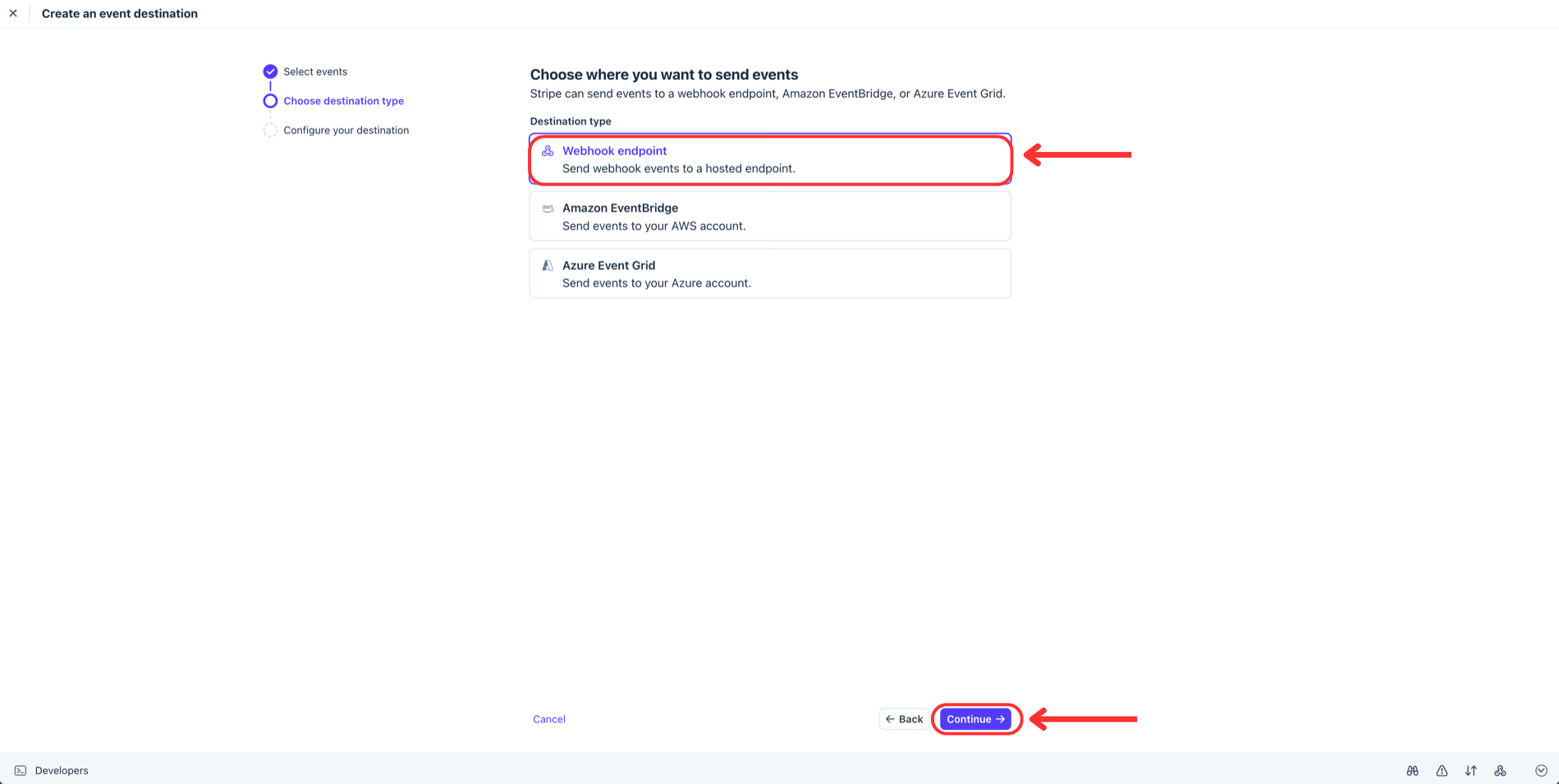
Pick Webhook endpoint (it is usually pre-selected for you) and click Continue.
Step 5: Configure the destination
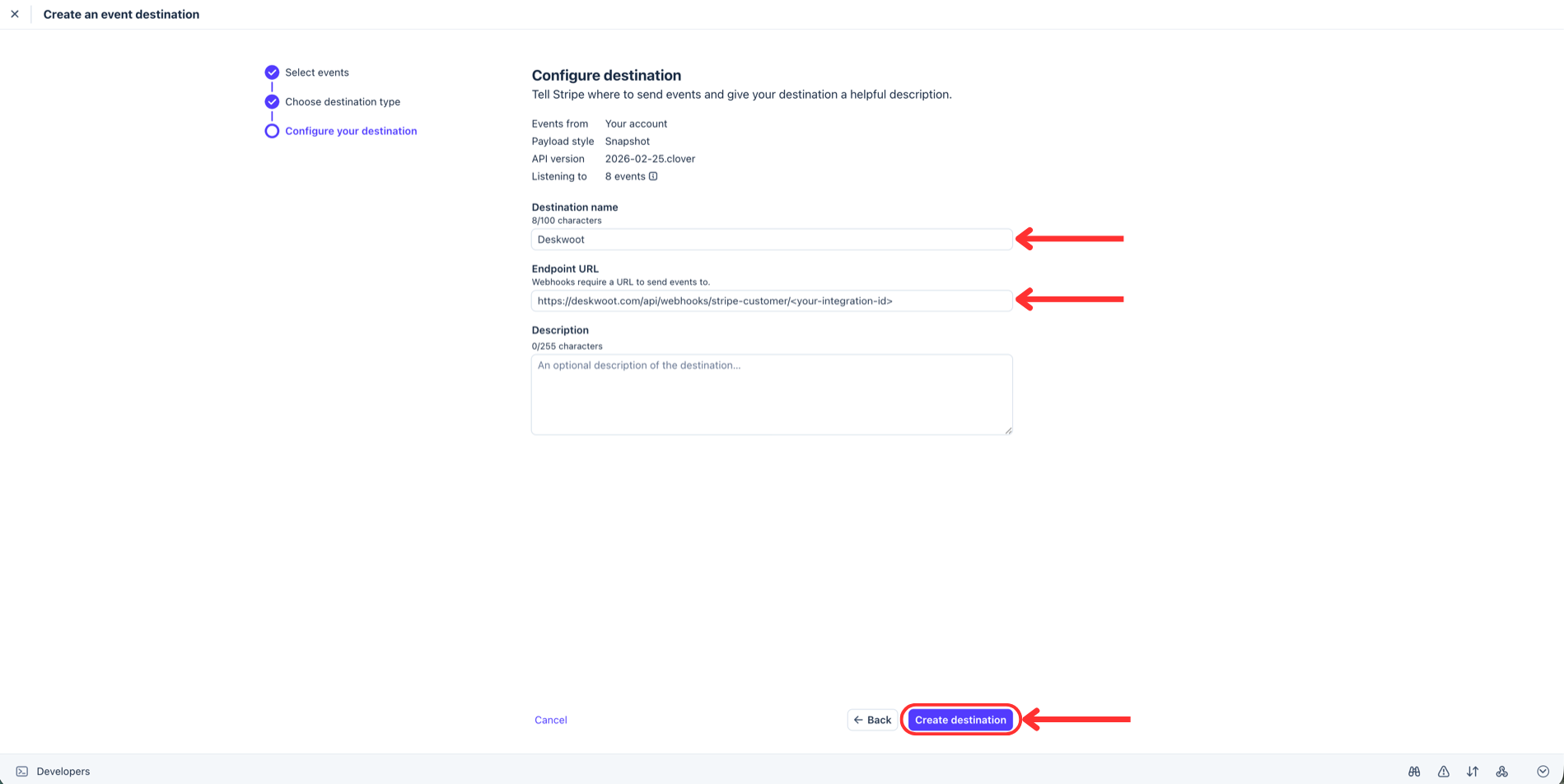
Type Deskwoot as the Destination name, paste the Webhook URL you copied in Step 1 into the Endpoint URL field, and click Create destination. The description is optional.
Step 6: Reveal and copy the signing secret
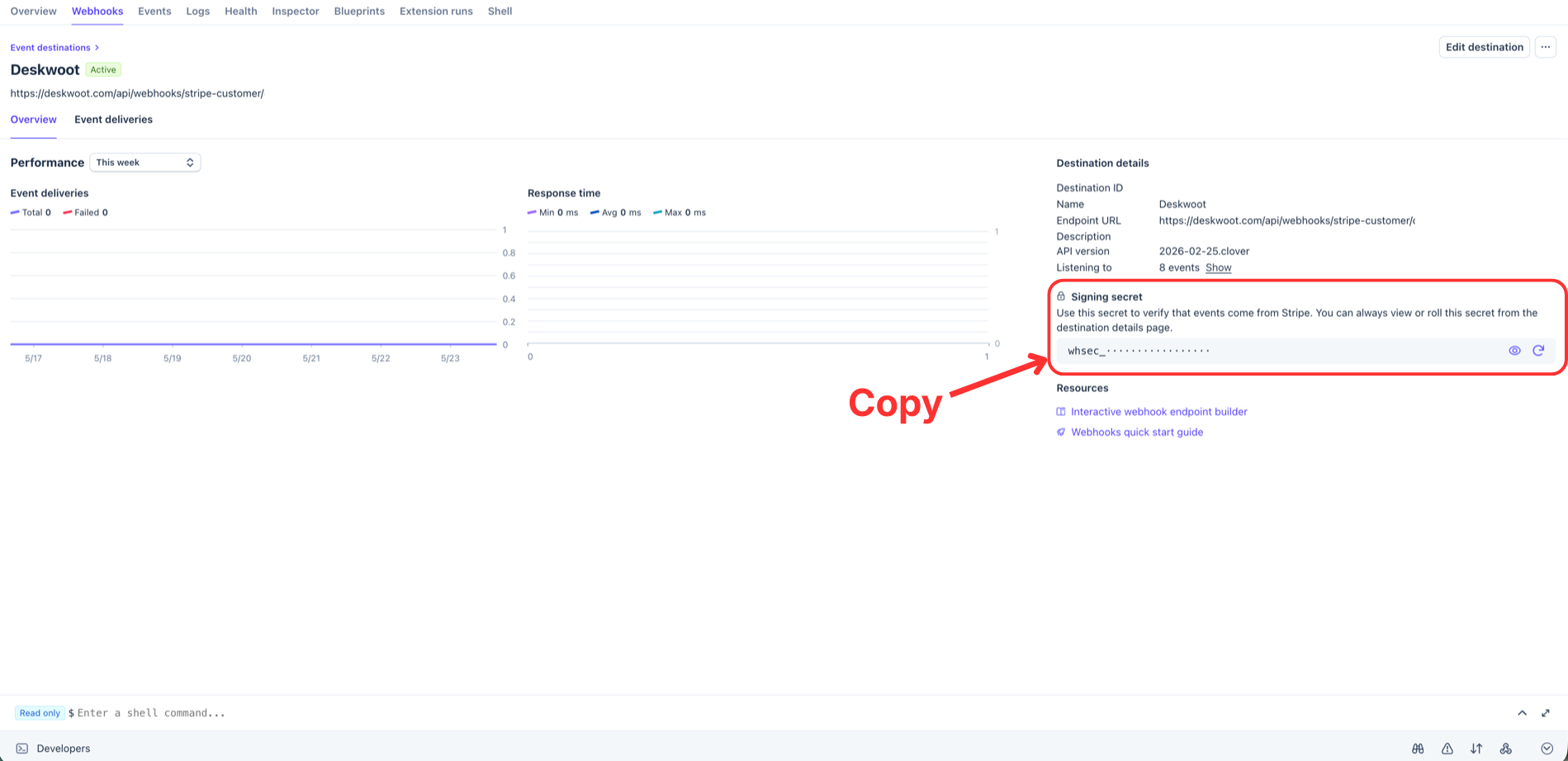
Stripe now shows the newly created webhook endpoint with an Active badge. In the right column find the Signing secret box, click the eye icon to reveal it, and copy the whsec_ value.
Step 7: Paste the secret back into Deskwoot
Back in Deskwoot under Settings → Integrations → Stripe, paste the whsec_ value into the field under Step 2. Webhook signing secret and click Save. The status of the Customer events in real time box switches from "Not set up" to "Set up".
Step 8: Send a test webhook
Back on the Stripe webhook endpoint page, click Send test webhook. Pick charge.succeeded from the dropdown and click Send test webhook. Within a few seconds Stripe shows a 200 response next to the test event. You're done.
From now on Stripe sends new charges, refunds, subscription changes and new customers to Deskwoot the moment they happen, and Deskwoot saves them right away instead of waiting for the daily contact import.
Troubleshooting
The test webhook returns a 4xx error. Open Deskwoot under Settings → Integrations → Stripe and confirm the signing secret matches exactly what Stripe showed you, no leading or trailing spaces. The secret must match for signature verification to succeed.
The endpoint shows a 412 Precondition Failed. Deskwoot has the integration but no signing secret saved yet. Paste the whsec_ value into the Webhook signing secret field and save.
Events arrive but customers still do not appear in Deskwoot. Most likely the events you selected do not include charge.succeeded or customer.created. Open the webhook endpoint in Stripe, click Update details, and confirm the full event list above is selected.
Frequently asked questions
Do I need the webhook?
Which events do I select in Stripe?
Where do I find the signing secret?
What does a 412 Precondition Failed mean?
Was this guide helpful?
Keep reading
- EasyPost shipping trackingRead guide
- Send Facebook and Instagram leads to a WhatsApp inboxPipe Facebook and Instagram Lead Ads form fills into a WhatsApp inbox in Deskwoot.Read guide
- Connecting WhatsApp BusinessWhatsApp Business integration lets you manage WhatsApp conversations from your Deskwoot inbox. Deskwoot uses the official WhatsApp Cloud API provided by Meta, wRead guide

Ask Fynn about this guide
Get a short answer from this guide and the rest of the help center.